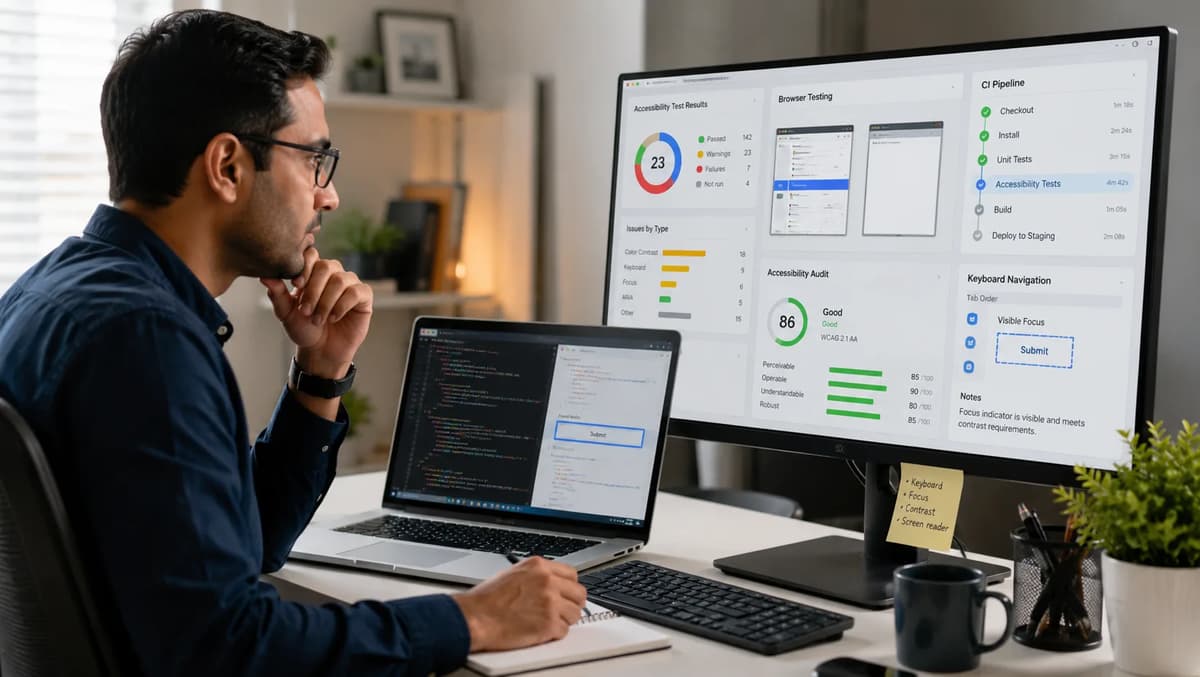
Imagine a QA engineer scanning the issue queue and seeing a ticket marked “DONE: Accessibility issue resolved,” all because an AI coding assistant ran an axe-core check on the new code and declared victory. It sounds efficient, but in practice it often means very little has been truly verified for users. Axe-core is a powerful open-source accessibility testing engine, but accessibility leaders at Deque Systems warn that it does not make a product accessible by itself; teams still need purpose-built tools and manual testing. This article explains what an AI agent actually does when it “fixes” accessibility, what axe-core can and cannot catch, and how a QA automation engineer must verify the result through a Selenium suite and a Jenkins pipeline. Readers building those foundations can explore the Refonte Learning QA Automation Engineering Program, which covers Selenium, test frameworks, and CI/CD Pipeline Integration. By the end, you will see why an AI-run axe-core scan is a useful start, not the finish line for WCAG 2.2 compliance.
When an AI Agent Says “Fixed,” What Actually Happened
AI coding assistants like GitHub Copilot or Claude Code can automate code changes, but their notion of “fixing” an accessibility issue often means running a tool like axe-core and seeing no failures. Typically, this process looks like:
AI inserts axe-core in code: The agent adds a call to the axe-core API (or a similar scan command) in the test or build script. This runs the axe engine on the updated UI.
Automated scan executes: Axe-core inspects the DOM for its built-in rules (missing alt tags, label problems, color contrasts, etc.).
Agent auto-applies trivial fixes: If axe-core flagged something, the agent might make code changes, for example, adding a default alt="" to images or a basic aria-label to a button. These are low-level fixes that satisfy the engine’s rules.
Re-run axe-core: The agent runs axe-core again, sees no reported violations, and concludes everything is “fixed.”
However, this leaves many gaps. Axe-core only sees a snapshot of the page DOM and applies its rules, but an AI agent won’t have manually navigated the UI. It may not verify keyboard flow, focus order, or the meaningfulness of alt text. In other words, the agent did exactly what it was told, automated the axe-core scan and fix, but did not perform the nuanced checks that actual users (and WCAG) require.
Common automation pitfalls:
Believing that zero axe-core violations = true accessibility. (It’s only a subset of issues.)
Not testing pages behind logins or dynamic flows (axe-core runs only on open URLs).
Adding placeholder alt or label attributes without verifying clarity.
Skipping visual aspects (e.g. how focus is visible) that axe-core doesn’t assess.
Deque’s August 18, 2026 milestone post gives the warning plainly: teams must teach agents to handle accessibility correctly and must not rely on axe-core alone. In practice, when an AI calls a ticket “fixed,” it usually means the page passes axe-core’s automated checks, not that the product is genuinely accessible. QA engineers still own the verification needed to show that the relevant WCAG criteria are met in the actual user experience.
What Axe-Core Actually Checks
Axe-core is a rule-based, open-source accessibility engine. It can automatically detect many common WCAG issues in static HTML/DOM content. For example, it checks:
Image and media attributes: Missing or empty alt text on <img> tags, missing captions on videos, etc.
Form labels: Inputs without associated <label>s or aria-labels.
Heading structure: Missing headings or skipped levels (e.g. an <h3> without an <h2> before it).
Color contrast: Text with insufficient contrast against its background (e.g. failing WCAG’s contrast ratio thresholds).
ARIA usage: Certain incorrect ARIA roles or properties (e.g. redundant aria-label).
Link text: Empty link text or links that say “click here” without context.
Focus indicators: Some rules for missing visual focus outlines (if detectable).
In short, axe-core enforces a substantial portion of automatically testable WCAG 2.0, 2.1, and 2.2 rules. According to axe-core’s own project documentation, the engine can identify, on average, about 57% of WCAG issues automatically. The other portion still requires guided testing, manual review, or both. Axe-core can also return “incomplete” results when an element needs human verification.
The Gap Between “Passes Axe-Core” and “Is Accessible”
In practice, many important accessibility aspects are outside axe-core’s scope. Key gaps include:
Dynamic interactions: Axe-core can’t simulate user interactions beyond static analysis. It won’t test a drop-down menu opening or a modal dialog unless the test script explicitly triggers those flows. It doesn’t verify that interactive widgets function properly (e.g. menu items reachable by keyboard).
Page context and meaningfulness: Axe can tell you an image is missing alt text, but not what the alt text should be. It can’t judge whether link text is descriptive in context or whether form instructions make sense.
Multi-step flows: A multi-page checkout or form wizard requires checking focus and labels across steps. Axe scans per page, but a real user journey may have issues only apparent in sequence.
Complex UI patterns: Modern web apps use ARIA for dynamic content (like expanding sections, live updates, etc.). Axe checks basic ARIA, but tricky patterns like drag-and-drop or canvas interactions need manual testing.
Visual and UX factors: Elements like focus order, hover states, and touch target size are often stylistic. An automated tool might see a focusable element in the DOM, but only manual testing confirms that focus is visible and intuitive. Similarly, checking that a button has sufficient hit area or that a form’s validation errors are presented accessibly often requires human judgment.
Example: An AI agent could add tabindex attributes to allow keyboard navigation of a new widget and axe-core might see no issues, marking it “fixed.” But if the tabindex order is illogical, or focus rings are not visible enough, the site is still a poor experience for keyboard users. Those subtle cues can only be caught by QA engineers actually tabbing through the interface or reviewing the UI with assistive techniques.
Beyond technical rules, WCAG also includes criteria that absolutely require manual testing (like testing audio descriptions or user language switching), which no engine can do.
Key takeaway: Passing an axe-core scan is necessary but not sufficient for accessibility. Think of it as clearing initial automated hurdles. The “gap” to true accessibility can be visualized as follows:
Axe-core passes means… | But you still must verify… |
✔ Every <img> has some alt attribute | ✔ That the alt text is meaningful and correct |
✔ All buttons have an aria-label or text | ✔ That the labels describe the action properly |
✔ Contrast ratios meet minimum thresholds | ✔ That color usage is consistent and legible |
✔ No obvious ARIA violations are flagged | ✔ That custom components behave correctly (e.g. roles applied properly in context) |
✔ All links have link text | ✔ That link text is descriptive to users |
✔ Keyboard can reach each focusable element | ✔ That the focus order and visuals make sense |
Each green check from axe-core still leaves an orange “manual review” check on the right. A good automation suite aims to cover as many left-side checks automatically, but an expert QA must confirm the right side.
The axe-core project documentation states that the engine can find, on average, 57% of WCAG issues automatically. That leaves a significant share of issues that need manual attention or more advanced guided tests.
The Axe MCP Server, Explained
Deque’s Axe MCP Server brings axe-core into development workflows more directly, especially workflows that use AI coding assistants. Announced on February 11, 2026, it exposes accessibility analysis and remediation capabilities that an AI agent can call while a developer is working.
Included in Axe DevTools for Web: On February 11, 2026, Deque announced that Axe MCP Server was included with Axe DevTools for Web at no additional cost. Teams already using that product can connect the server to supported coding workflows without treating accessibility as a separate, end-of-cycle activity.
Two main capabilities: It provides (1) an analyze endpoint (runs axe checks on given pages or components) and (2) a remediate endpoint (generative AI guidance for fixing issues). Under the hood, it uses axe-core for the analysis, and an “axe Assistant” AI model trained on Deque’s accessibility knowledge to suggest how to fix any violations.
AI-integrated: Because it exposes a programmatic interface, AI coding assistants (like Copilot or Claude) can call it directly. For example, an agent coding in VS Code could automatically send the current page DOM to Axe MCP Server, get back violations, then send those to an AI-driven remediator to get code suggestions.
Supports advanced scenarios: The August 5, 2026 update added Automated Intelligent Guided Tests, beginning with keyboard-navigation testing, plus scoped component scanning and batch remediation of up to 25 issues per request. The update also added testing support for authenticated experiences and local installation through npx without a Docker requirement.
Why MCP matters: Axe MCP Server aims to automate the analyze, report, and remediate loop that teams previously performed through separate tools. An AI agent calls the analysis capability on a defined UI state, receives findings, and requests remediation guidance. Deque CTO Dylan Barrell framed the goal as helping developers contribute to accessibility earlier while continuing to use their preferred development tools and AI coding agent.
The launch announcement positioned Axe MCP Server as an AI-assisted remediation tool inside the development workflow. The August 5, 2026 update expanded that workflow with automated guided keyboard testing and multi-issue remediation. Those additions make the server more than a scanner, but they still do not replace independent QA verification.
However, even with Axe MCP Server in place, Deque reminds us that automating these checks isn’t the same as validating them. That brings us to the next section.
How AI Coding Agents Are Using It in Practice
AI coding assistants are beginning to embed accessibility checks directly into coding workflows. Deque’s August 5, 2026 post says Claude Code was producing approximately 195 million lines of code each week for more than 115,000 developers as of mid-2025. That figure is Deque’s attribution and was not independently cross-verified against an Anthropic primary source for this article. The broader point remains: code can now be generated at a scale that makes repeatable automated checks essential, while also increasing the need for disciplined human review.
What does this look like in reality? An AI agent with Axe MCP Server might do the following inside your IDE or code pipeline:
Automated scans (Axe analyze): The agent runs a background scan after code changes. For example, a Copilot extension might catch that you added a new image tag and automatically call the axe-core analyze function. This returns any accessibility violations on the current page state.
Suggested fixes (Axe remediate): The agent then calls Axe MCP’s remediation API for each issue (or a batch of them). The axe Assistant AI, trained on Deque’s accessibility guidance, suggests code changes (e.g. add role="button", or fix a label). The agent applies these suggestions to the code.
Automated follow-up tests: It re-runs axe-core (or even the new Automated Intelligent Guided Tests). For instance, the “keyboard IGT” can have the agent simulate pressing Tab through the UI and report missing focusable elements or focus order mistakes.
Developer feedback loop: Ideally, the agent then shows a report or checklist of what it did. But often it may just auto-commit the changes and close the ticket if axe has no remaining flags.
This process is powerful, but also risky if over-trusted. For example, the new Automated IGTs will automatically test some complex interactions, starting with keyboard navigation. Deque notes that with Axe MCP Server, “Automated accessibility testing helps teams catch issues earlier”, and that the latest update “support[s] Automated Intelligent Guided Tests (IGTs), beginning with the keyboard IGT, with plans to continue expanding automated IGT coverage”. In practice, that means the agent can now catch things like “ensure every focusable element has a clear focus indicator.” The blog also mentions new advanced rules for headings, focus, contrast, etc., meaning the axe-core ruleset itself got stronger.
AI coding agents may also rely on built-in accessibility integrations in existing automation stacks. Refonte Learning’s QA Automation Engineering: Playwright AI Test Agents article covers a related but distinct question: how AI agents generate and maintain functional tests. In an accessibility workflow, the agent may inject axe-core into Selenium or another browser test, but the QA engineer must still define coverage, inspect the findings, and verify the resulting fix.
Here’s a quick look at Automated Intelligent Guided Tests: This feature is essentially scriptable, fully automated accessibility scenarios. For example:
Keyboard IGT: The tool programmatically sends Tab/Shift-Tab and tracks focus. It checks if all interactive elements are reachable and in logical order. If something in the auto-tab path is missing a focus state or reachable via the wrong key, it flags an issue.
Future IGTs: Deque plans to expand these to other scenarios (maybe pointer tests or form tests).
Batch remediation: The updated Axe MCP Server API lets an agent request guidance for up to 25 issues at once. This can speed repetitive fixes, but it also makes review discipline more important because a single request may change many components or accessibility attributes.
Think of Axe MCP Server as giving the agent accessibility-specific helpers rather than ordinary functional-test helpers. The agent can run tests and propose changes, but it cannot responsibly declare accessibility complete without independent verification of the rendered interface and its real user flows.
Why Deque Itself Warns Against Over-Trusting Axe-Core Alone
Deque’s own leadership has been clear that axe-core is not the entire answer. In its August 18, 2026 milestone post, Deque reported that axe-core had surpassed five billion cumulative downloads and was approaching ten million downloads per day. Those are Deque’s self-reported figures and are not third-party audited. In the same post, CEO Preety Kumar described axe-core as a strong baseline while stressing that teams still need purpose-built tools and manual testing.
The same Deque post warns that AI will often reach for axe-core when prompted to make something accessible. The lesson is not to reject that behavior, but to teach agents a broader accessibility process and avoid relying on axe-core alone. A finding does not prove the proposed fix is meaningful, and a clean scan does not prove the application is usable by people with disabilities.
Deque’s warning also highlights that axe-core is just one tool in an accessibility toolbox. Their MVP (Minimum Viable Product) for accessibility success would include things like automated testing (axe-core, IGTs, etc.) plus assistive-user testing, design reviews, and possibly other static analysis (like linting tools). They mean exactly what we’ve been emphasizing: let the AI run the scans, but have a QA engineer confirm them.
This warning translates into a practical QA rule: even when Axe MCP Server proposes and applies changes, a QA engineer must validate each fix independently. That normally means reviewing the implementation in context, exercising the relevant interaction, and using keyboard or assistive-technology checks when required. Axe-core’s automation and human verification work as complementary layers, not substitutes.
Where WCAG 2.2 Fits Into This Picture
These tools and techniques ultimately support the Web Content Accessibility Guidelines. WCAG 2.2 was published on October 5, 2023 and updated on December 12, 2024. W3C also notes that the October 2023 Recommendation is published as ISO/IEC 40500:2025, while the December 2024 update is expected to be reflected in a later ISO edition. That standards context makes WCAG 2.2 compliance testing a durable engineering requirement rather than a temporary tool trend.
How WCAG 2.2 matters for testing: Each success criterion in WCAG (e.g. “contrast ratio ≥ 4.5:1” or “focus visible on interactive elements”) should be represented in your automated tests or manual checklist. Axe-core’s rule set already covers many of these (it has rules for all WCAG 2.1 Level A/AA, and it’s updated for 2.2 criteria as they’re finalized). For example, axe-core will automatically check the new 2.2 criterion 2.4.11 Focus Not Obscured, or 2.2.6 Timeouts, if rules exist for them. But an AI scan must know which WCAG it’s aiming for and have those rules enabled.
European accessibility compliance work continued through 2026, but this should not be described as a new 2026 enforcement crackdown. In Canada, significant federal accessibility deadlines remain future milestones, including deadlines in 2027 and 2028 for covered organizations. For QA teams, the practical response is to build sustained WCAG-oriented evidence into development and release workflows rather than waiting for a headline enforcement event.
Examples of WCAG 2.2 criteria to watch for in tests:
2.4.11 Focus Not Obscured: In code terms, automated tests should verify that as users tab through, no element receiving focus is visually hidden by a fixed element. Axe MCP’s keyboard IGT will help catch this, but manual review verifies it looks right.
1.4.11 Non-text Contrast: Check that UI graphics and icons meet contrast guidelines (axe has rules for this). This requires grabbing computed styles or images in tests.
3.2.5 Change on Request: Hard to automate, ensuring dynamic content changes are user-initiated requires logic in the app, so QA must verify it manually.
2.5.7 Dragging Movements: A new 2.2 AA rule, tests could try dragging with keyboard or pointer and ensure equivalent actions exist (manually confirm any custom drag controls).
The public Refonte Learning program syllabus does not name WCAG, axe-core, or Axe MCP Server. Its modules on Selenium, Cucumber, test frameworks, and CI/CD Pipeline Integration build the transferable engineering skills needed to turn WCAG criteria into automated checks and pipeline gates. WCAG 2.2 sets the quality target; axe-core automates part of the evidence, and QA engineers verify that the user experience satisfies the intent.
Integrating Axe-Core Into a Selenium Test Suite
To move beyond one-off axe scans, a modern QA automation suite incorporates accessibility checks into its browser tests. Selenium remains under active maintenance, with Selenium 4.47 released on August 10, 2026. For teams using Selenium, the integration follows a small set of repeatable engineering steps:
Add the axe library to the test code: For JavaScript or Node-based Selenium suites, use @axe-core/webdriverjs. For Java Selenium suites, use Deque’s official Java Selenium integration. The test framework needs a supported way to inject and run the axe engine against the current browser state.
Load the page and run axe: Navigate through the application with Selenium, establish the UI state you want to test, and then call the axe builder. In JavaScript, the core analysis call can be written as follows:
const results = await new AxeBuilder(driver).analyze();This runs axe on the current page context.
Assert or fail on violations: After running, results.violations contains any issues. Your test code should iterate these and decide what to do. Typically:
if (results.violations.length > 0) {
console.error("Accessibility violations found:");
results.violations.forEach(v => console.error(v.help, v.nodes.length));
throw new Error("Accessibility issues detected");
}
Throwing an error (or using your test framework’s assert) will fail the test. In CI/CD, a non-zero exit means the build will fail.
Report results: It’s good practice to integrate with a test reporter or output the axe report as JSON/HTML so engineers can review which elements failed. Jenkins or test reports can then archive these for review.
This setup means every time your Selenium suite runs (say on each pull request), it automatically catches any new accessibility defects. A test runner like JUnit or TestNG will show the failure and logs just like any other test case.
Example: A popular pattern is to write a Cucumber step (or a JUnit/TNG test) like “Then the page should have no accessibility violations.” The step’s code would run axe.run() and assert zero violations. If there are any, the test fails and the issue is logged.
Deque’s documentation and the MagicPod community guide show the same basic pattern: initialize the browser, navigate to the required state, call the axe builder, log violations, and exit with a non-zero status when the test fails. That status is what lets the CI pipeline enforce the result.
A Practical Setup Walkthrough
Here’s a checklist-style guide to actually wiring axe-core into your Selenium test suite:
Step 1: Install axe dependency.
For JavaScript or Node: Install the package with npm install --save-dev @axe-core/webdriverjs and confirm Selenium WebDriver is configured.
For Java: Add Deque’s Java Selenium integration through Maven and align the package version with the rest of the automation stack.
Step 2: Write or update test code.
Locate or create the test case where you want to check accessibility (e.g., after navigating to a page).
In code, use the axe integration to inject and analyze:
JS example:
const AxeBuilder = require('@axe-core/webdriverjs');
const driver = await new Builder().forBrowser('chrome').build();
await driver.get(baseUrl);
const results = await new AxeBuilder(driver).analyze();
Java example:
AxeBuilder builder = new AxeBuilder();
JSONObject results = builder.analyze(driver);
JSONArray violations = results.getJSONArray("violations");
Step 3: Check results in the test.
After analyze(), check if any violations were returned.
If there are violations, log details (violation ID, affected elements) for debugging.
Use your test framework to fail the test if violations > 0. For example:
if (results.violations.length) {
throw new Error("Accessibility issues found: " + JSON.stringify(results.violations));
}
This ensures the test suite and CI job stop on a failed accessibility check.
Step 4: Run and validate.
Run your test suite locally first. You should see the accessibility test appear as a passing/failing test case.
In CI (Jenkins or GitHub Actions), add a stage that runs these tests. A failure will fail the build.
By following these steps, you’re effectively treating axe-core scans just like any functional test. You can even group accessibility checks into a separate test suite or run them in parallel with other Selenium tests.
Gating a Jenkins Pipeline on Accessibility Checks
Once your Selenium test suite includes axe-core checks, the next step is to gate your CI/CD pipeline on them. In Jenkins (or similar tools like GitLab CI, GitHub Actions, etc.), this means adding a build step and using its pass/fail result to control the pipeline.
Example Jenkins Pipeline Stage
stage('Accessibility Testing') {
steps {
echo 'Running automated accessibility tests with Axe-core...'
// Run your test runner, which includes the axe tests
sh 'mvn test -Dtest=AccessibilityTests' // or npm run test, etc.
}
post {
failure {
echo 'Accessibility tests failed! Please fix the issues.'
}
}
}
The mvn test command runs a suite that contains axe-core checks. If a test throws an assertion error because violations were found, the shell step returns a non-zero exit code and Jenkins fails the stage. The Jenkins JUnit plugin can publish the XML test results, while the job can archive a JSON or HTML accessibility report for review.
The same pattern appears in a practical CI/CD integration guide: when the test finds violations, it logs them and exits with a non-zero status, causing the pipeline to fail. Developers receive immediate feedback before the change can be merged.
Comparison with performance testing: Continuous Performance Testing Automation uses a related pipeline idea, but measures latency, throughput, and stability rather than WCAG findings. Accessibility deserves its own gate because the failure evidence, remediation workflow, and required manual verification are different.
Best Practices
Thresholds for violations: Early on, your app might have many legacy accessibility issues. To avoid constantly failing the build, you can set an acceptable threshold. For example, allow up to 5 new violations before failing. Over time, reduce that threshold to 0.
Generate reports: Use the axe-core API’s ability to output JSON or HTML reports. Some teams archive these artifacts in Jenkins so engineers can inspect violations by element or by rule.
Fail fast: Typically, you want the pipeline to stop as soon as a severe a11y issue is detected. Don’t rely on manual checks after the fact.
Combine with linting: In addition to running full axe scans, consider static analysis in CI (e.g. axe linter or eslint-plugin-jsx-a11y). Those can catch issues at code review time, before running the full browser tests.
By gating your CI pipeline on accessibility, you enforce a development culture where every new code change must pass the Axe checks. But remember: this only automates part of the process. A passing pipeline means automation passed, not that the app is fully accessible.
What Manual Testing Still Has to Catch
Even with axe-core scans running in CI, plenty of accessibility issues slip through without human eyes. Some examples of what only manual testing or human judgment can catch:
Contextual correctness: E.g. a screen reader user might hear an image’s alt text and wonder “What’s this?” The AI might have inserted a placeholder, but is it useful? A QA tester must review alt text for meaningfulness.
User experience flows: Complex interactions, like drag-and-drop, virtualized lists, or custom widgets, often need a user to actually try them. Does a custom date picker announce its instructions to a screen reader? Does the order of fields match expected reading order? These require a tester to engage with the app (keyboard-only, screen reader, etc.).
Real-world tasks: True accessibility means completing tasks (e.g. filling out a form, reading an article, shopping cart checkout). Manual testing involves following user stories and verifying they work seamlessly. Automated tests usually only check partial flows or known paths.
Visual issues: Things like overly dense layouts, confusing color usage (even if contrast ratios pass), or small hit targets. A human can spot that a button is barely tappable on mobile, or that focus rings are too faint on a real monitor. Axe-core might see the button is there (and instrument a focus check), but a tester determines if it’s actually perceivable.
Assistive tech nuances: Screen reader announcements, voice control labels, color-blind compatibility, these often need manual or specialized tools to evaluate. For instance, checking that a map interface is usable with a keyboard or that an infographic has an adequate text alternative.
Deque’s August 18, 2026 post stresses that accessibility compliance is a larger process than automated scanning. Automation creates repeatable evidence, while manual review and user-centered testing complete the picture. In practice, a QA automation engineer should combine the pipeline suite with keyboard-only exploration, screen-reader checks, and task-based review of the states that automation cannot judge.
Think of the layers as functional tests, integration tests, automated accessibility checks, guided tests, and manual accessibility verification. Each layer adds evidence. The AI agent and axe-core can clear automated checks, but the QA engineer must confirm that the implemented experience meets WCAG intent.
Writing Accessibility Test Cases in Cucumber
One way to make automated accessibility requirements clear and maintainable is to write them as BDD scenarios using Cucumber/Gherkin. This fits well if your team is already using Cucumber for feature tests. You basically turn WCAG success criteria into user scenarios. For example:
Scenario: All images have appropriate alt text (WCAG 1.1.1 & 1.4.5)
Given I am on the Product Details page
Then each <img> element should have non-empty alt text
The step definition for “each <img> element…” would run axe.run() and assert on image-related violations.
Scenario: Keyboard navigation order (WCAG 2.4.3)
Given I open the homepage
When I press Tab repeatedly
Then focus should move through interactive elements in a logical order
Here the “When I press Tab” step could be implemented with WebDriver’s Actions sendKeys, and you’d verify the focus (perhaps using document.activeElement) matches an expected sequence.
Scenario: Color contrast (WCAG 1.4.3)
Then all visible text on the current page should have a contrast ratio >= 4.5
This might call a dedicated helper (or axe-core itself) to check contrast for all text nodes.
By encoding these checks as high-level scenarios, the intent is clear to anyone reading the tests. It also allows non-technical stakeholders (like accessibility champions) to understand what’s being tested.
Turning WCAG Criteria Into Gherkin Scenarios
To systematically do this, consider each WCAG AA criterion and ask “how could I test this programmatically?” Some examples:
2.4.2 Page Focus Order:
Gherkin: “When I press Tab from the top of the page, focus goes to the main navigation first.”
Test Code: Use Selenium’s keyboard events to simulate Tab and check focus sequence.2.5.3 Label in Name: (Voice control & ARIA)
Gherkin: “Then each button’s accessible name must contain its visible label.”
Test Code: Axe will catch many violations here by checking aria-label matches inner text.1.3.1 Info and Relationships:
Gherkin: “Then each table must have row and column headers correctly defined.”
Test Code: Axe flags missing <th> or scope attributes.2.4.4 Link Purpose:
Gherkin: “Then each link’s text should describe its purpose.”
Test Code: Axe identifies empty or generic link text; manual check ensures link context is meaningful.4.1.2 Name, Role, Value:
Gherkin: “Then all ARIA controls should expose correct names and roles to accessibility APIs.”
Test Code: Axe verifies some ARIA issues, but a manual check might be needed for custom controls.
In Cucumber, you’d implement these “Then” steps using your testing framework (e.g. a Java step definition that runs AxeBuilder.analyze(driver) and asserts violation count for that criterion). You can even tag scenarios (e.g. @accessibility) so they run as part of your QA suite separately from core functional tests.
Use this accessibility test-case checklist:
Label form fields: each <input> has a corresponding <label> or aria-label.
Alt text for images: every <img> has a meaningful alt.
Keyboard navigation: “Tab” moves focus to all interactive items in order.
ARIA attributes: no invalid or redundant ARIA used (checked by axe-core’s ARIA rules).
Document titles: each page has a unique, descriptive <title> tag.
Error handling: form validation errors are announced (may require manual scenario).
By writing these as Gherkin, you create living documentation of accessibility requirements. It also forces us to think in “Given/When/Then” terms: given a page, when a user performs an action, then the expected WCAG outcome is observed. This practice ensures that accessibility isn’t an afterthought but baked into the acceptance criteria for features.
How This Differs From the Design-Side Accessibility Conversation
Testing accessibility in code is different from designing for accessibility. The Refonte Learning article The European Accessibility Act for UI/UX Design covers the design-systems side, including visual specifications, focus states, touch targets, and color choices. This article addresses the engineering mirror of that work: validating the rendered implementation with Selenium, axe-core, CI/CD gates, and manual verification.
Key differences between design vs. testing focus:
Design Review: Designers ensure components allow accessibility (e.g., all buttons have visible focus styles, text boxes have labels in mockups, contrast ratios are considered in the style guide). They might catch issues like “this green text on blue background fails WCAG” as part of UI review. This is what the EAA UI/UX article highlights.
QA Verification: Our focus is implementation: Did the code actually implement those designs accessibly? For example, maybe the design token had proper colors, but a CSS bug used the wrong one. We test that the deployed site meets the spec. We automate checks on the rendered app, not just the static design.
For example, designers might specify that clickable cards have a clear focus ring when tabbed to. QA engineers write a test that tabs to each card component and checks the computed style of:focus elements (or uses axe’s focus indicator rule). Even if the design had correct specs, it’s the QA’s job to verify the code followed them.
Another angle: The EAA article emphasizes catching accessibility issues early in design reviews. Here, we emphasize catching accessibility issues early in development via automated tests. Both are “shift-left,” but at different stages. A designer might check if all form fields have labels on the mockup, while a QA engineer writes a Cucumber scenario to verify labels exist in the actual HTML.
Design review and code-level verification differ in practice:
Design-systems focus: color tokens, typography, component accessibility (like ensuring <button> not <div>), layout breakpoints for zoom.
Code-level QA: running axe-core on the live application, verifying dynamic interactions (like modals, form validation), and checking that design elements are actually coded properly.
The two perspectives are complementary. Design review should prevent avoidable accessibility defects before implementation, while QA verification determines whether the delivered code behaves as intended across real states and user journeys.
By explicitly distinguishing the engineering angle, we avoid repeating the UI/UX tips (contrast tokens, focus style guidelines) covered in that design-centric article. Instead, we pull in the testing tools (Selenium, axe) and processes (CI gating) that turn those design principles into actual accessible code.
Common Mistakes Teams Make Trusting Agent-Reported Fixes
In practice, teams can fall into traps if they assume “axe passed, we’re good.” Some common pitfalls:
False sense of security: Automating a scan and seeing green often tempts teams to skip any follow-up. They may disable the test after it passes once, thinking no new checks are needed. In reality, new features or UI changes can re-introduce issues. Always re-run tests after each change.
Superficial fixes: Relying on an AI agent to “fix” by adding minimal attributes. For example, an agent might just insert alt="Image" to satisfy axe, which technically clears the error but doesn’t help the user. Teams should review such fixes.
Ignoring “incomplete” flags: Axe-core may mark something as “needs review” (like potential issues with unclear failures). Some might ignore these, but they often signal deeper problems.
Not accounting for context: Axe-core checks static rules, but misses state. A common mistake is trusting that passing axe on one page means the entire feature is good. For instance, a hidden confirmation dialog might not get scanned.
Partial test coverage: Teams sometimes only check a single page (like the home page) instead of the whole flow. Missing pages or states can have untested issues.
Overlooking mobile or localized versions: If your app has different versions (mobile site, multiple languages), you must run accessibility tests on those too. An AI might only scan the default locale.
A crucial one is believing automation means “done.” As Deque warns, axe-core is a baseline, not a guarantee. Many teams trust the agent’s word that “all issues resolved,” but then encounter accessibility bugs reported by actual users. The lesson: always have a human review at the end of each sprint or story.
QA Automation Engineer Skills and Salaries in 2026
To manage all this, QA Automation Engineers need a solid skill set. The Refonte Learning curriculum emphasizes exactly these areas:
Selenium & test frameworks: Writing robust Selenium scripts (in Java, Python, etc.) and using JUnit/TestNG for structure.
CI/CD tools: Integrating tests into Jenkins pipelines (the program covers “CI/CD Pipeline Integration”).
Behavior-driven development: Using Cucumber or similar to write clear scenarios (the program’s use of Cucumber ties in here).
Performance & security basics: (Covered in program, indirectly helps ensure your site is performant and safe for all users.)
Manual vs. automated testing best practices: Understanding when to use tools vs. human checks.
In short, an automation engineer in 2026 must be as comfortable writing Selenium test code as defining acceptance tests in Gherkin. For accessibility specifically, they need to know how to weave in tools like axe-core and interpret WCAG criteria.
Career outlook and salaries: QA automation remains a well-paid specialization in the United States. Glassdoor listed an estimated average total pay of $118,569 per year for QA Automation Engineers when verified on August 26, 2026. ZipRecruiter reported an average of $106,997 per year on August 25, 2026. These figures use different methodologies, so they should be read as source-specific market estimates rather than a single universal salary benchmark.
Source | Role | Salary (U.S.) | Date |
QA Automation Engineer | $106,997 (average/year) | August 25, 2026 | |
QA Automation Engineer | $118,569 (estimated average/year) | Verified August 26, 2026 | |
Software QA Analysts and Testers | $102,610 (median/year) | May 2024 |
For a broader occupational comparison, the U.S. Bureau of Labor Statistics reported a May 2024 median annual wage of $102,610 for Software Quality Assurance Analysts and Testers. Job titles and compensation methods vary, so the independent sources should be compared on scope as well as amount.
For those looking to build skills in this area, the strong salaries reflect the specialized skill set required. QA Automation Engineers who can write test frameworks and understand things like accessibility testing bring a lot of value to development teams.
Building This Skill Set: The Refonte Learning QA Automation Engineering Program
The framework and CI/CD skills behind automated accessibility testing align closely with the Refonte Learning QA Automation Engineering Program. The program runs for 3 months at 12–14 hours per week and covers the following verified curriculum areas:
Building and Running Automated Test Scripts: Develop the Selenium scripting foundation used to automate browser checks and organize tests with JUnit or TestNG. Those skills can be extended to call axe-core from the test suite.
Implementing QA Automation Frameworks: Build reusable framework patterns that make a growing Selenium suite maintainable across pages, components, environments, and test data.
CI/CD Pipeline Integration: Connect automated tests to Jenkins so failures can stop a build or merge. This is the underlying skill required to turn axe-core findings into a quality gate, although the public syllabus does not name axe-core.
Performance and Security Testing: Develop broader non-functional testing awareness alongside browser automation. Accessibility is a separate quality discipline, but it benefits from the same habit of measurable, repeatable verification.
Capstone Project: Apply the program’s automation skills in a practical project. An accessibility check can be an appropriate extension when it fits the project’s scope and requirements.
The public syllabus does not list axe-core, the Axe MCP Server, or WCAG by name. Its Implementing QA Automation Frameworks and CI/CD Pipeline Integration modules build the transferable skills needed to add an accessibility helper to Selenium and enforce the resulting test status in Jenkins.
The program names MSc Oskar Eriksson, Department of Software Engineering, as mentor, with more than 10 years of industry experience. Deque’s guidance reinforces the same professional mindset: automated tools are valuable, but accessible software still depends on deliberate coding, manual testing, and informed verification.
That combination prepares learners for outcomes such as QA Automation Engineer, QA Engineer, and Software Tester. The relevant foundation is not memorizing one vendor tool; it is learning how to build Selenium tests, express requirements in Cucumber, organize them with JUnit or TestNG, and make Jenkins enforce reliable results.
Accessibility testing automation is becoming part of mainstream test engineering because AI-generated code can change the interface faster than a manual checklist can follow. Axe-core provides a strong automated baseline, and the Axe MCP Server makes that baseline easier for coding agents to invoke. The final quality judgment still belongs to a QA engineer who can verify coverage, interpret findings, challenge superficial fixes, and test the experience that users actually receive.